For a successful Namibia e visa document upload, use PDF, JPEG, or PNG files under 2 MB each. Scan your passport bio-page at 300 DPI in colour and supporting documents in greyscale at 200 DPI. Apply via Chrome or Edge on a stable connection. Ensure the MRZ is fully visible and glare-free. Merge multi-page documents into a single PDF before uploading.
Last verified: September 2026. We tested the upload process on eservices.mhaiss.gov.na using Chrome 128 and Edge 128. This is an informational guide, not a government publication. Always verify current requirements on the official portal before applying.
Accepted File Formats for Your Namibia eVisa Upload
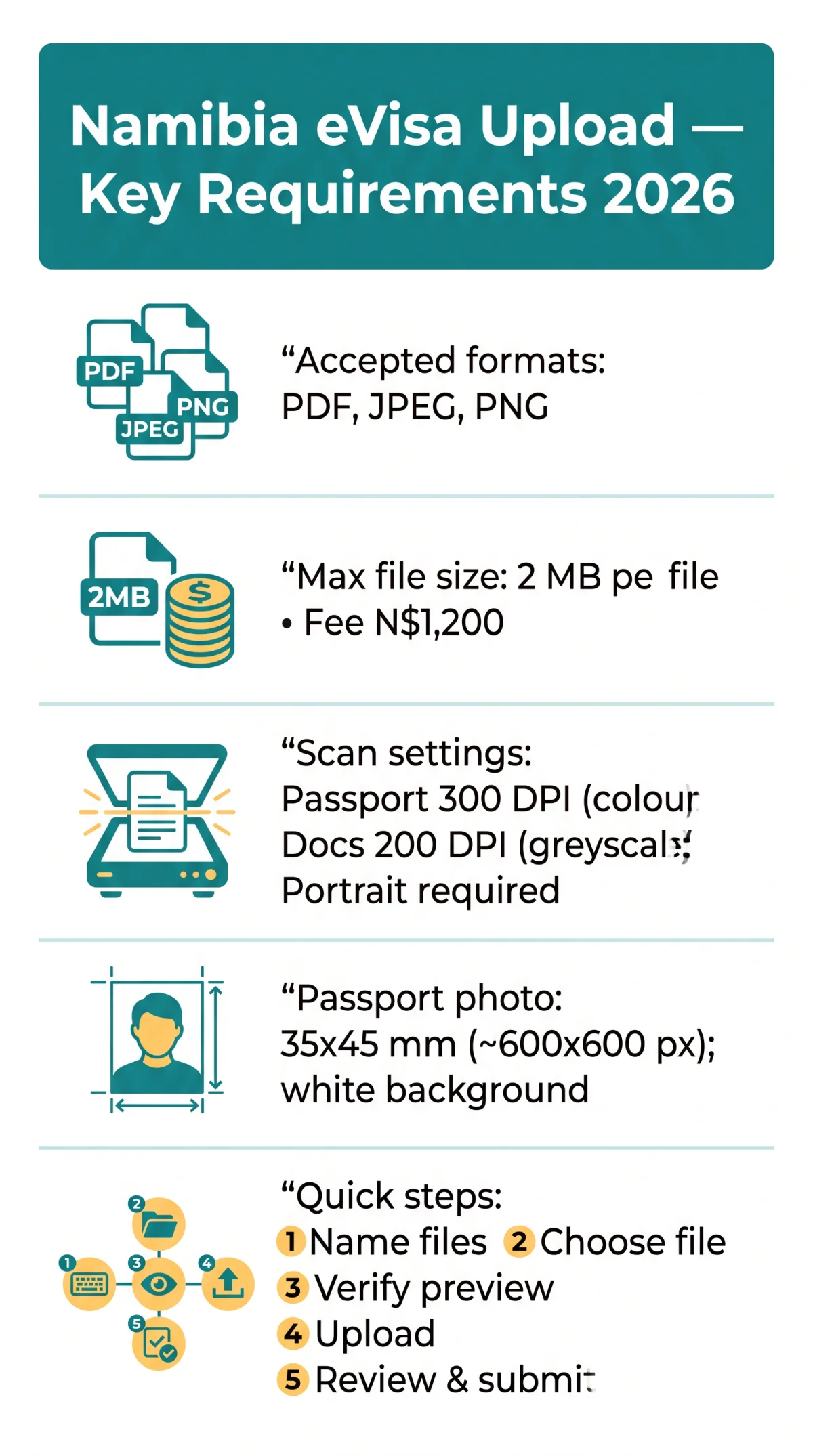
The Namibia e visa document upload accepts only PDF, JPEG, and PNG formats. HEIC, TIFF, and RAW files are rejected automatically. Convert images using ILovePDF, TinyPNG, or Adobe Acrobat before uploading. Name files without spaces or special characters: use passport_2026_09_11.pdf, not passport scan (1).pdf. The Namibia e visa document upload system checks file extensions at submission, so verify each file before starting.
| Document Type | Accepted Format | Notes |
|---|---|---|
| Passport bio-page | PDF, JPEG, PNG | Full colour scan required |
| Passport photo | JPEG, PNG | 35×45 mm, ~600×600 px |
| Supporting documents | Merge multi-page docs into one file |
Maximum File Size Limits and How to Compress Your Documents
Each Namibia e visa document upload must not exceed 2 MB per file. The Holiday Visa fee is N$1,200.00. Compress files using ILovePDF, TinyPNG, or Adobe Acrobat with a medium compression setting, then verify text legibility before starting the Namibia e visa document upload.
Check file size
Right-click, Properties or Get Info on your device
Open ILovePDF or TinyPNG
Select medium compression
Download compressed file
Confirm it is under 2 MB
Verify text legibility
Ensure all text remains readable before uploading
Scanner Settings for Optimal Document Quality (DPI, Colour, Orientation)
Scanner settings vary by document category. The Namibia e visa document upload requires 300 DPI for passport bio-pages in full colour and 200 DPI for supporting documents in greyscale. Portrait orientation is mandatory for all scanned pages during the Namibia e visa document upload.
Recommended Resolution
| Document | DPI | Colour Mode |
|---|---|---|
| Passport bio-page | 300 DPI | Full colour |
| Supporting documents | 200 DPI | Greyscale |
| Passport photo | 300 DPI | Full colour |
Colour Mode Requirements
Passport bio-pages require full colour to preserve MRZ contrast. Supporting documents such as bank statements can be scanned in greyscale to reduce file size.
Orientation
Portrait orientation is mandatory. Landscape scans are rejected by the portal.
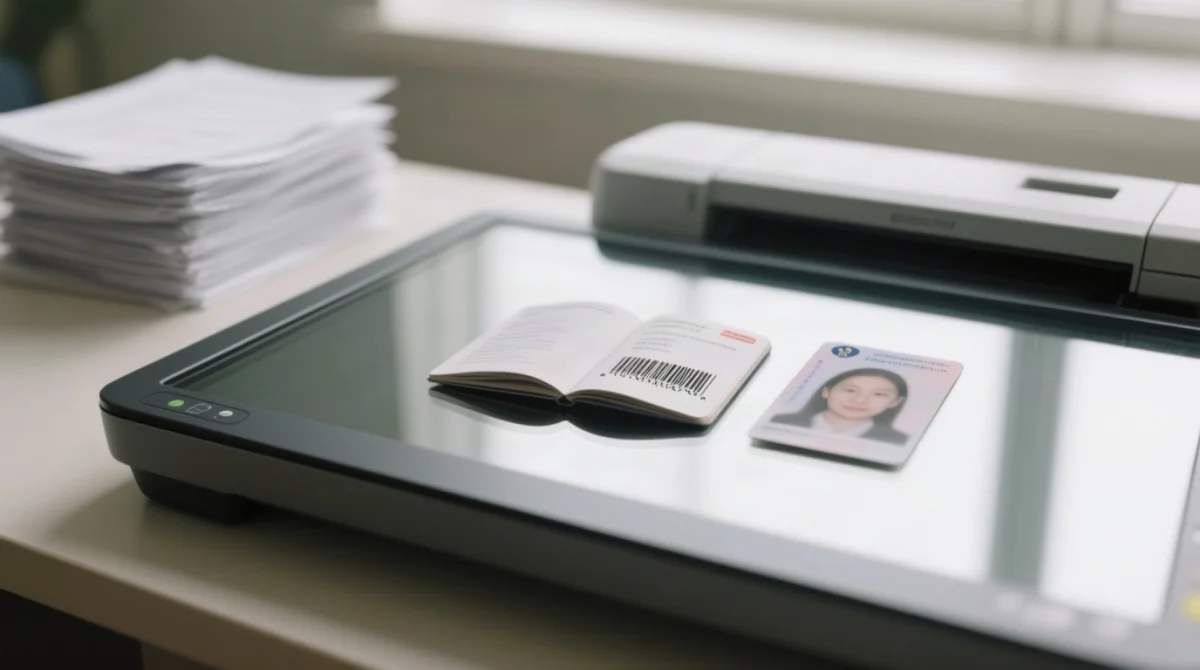
Tips for Scanning Your Passport, Photo, and Supporting Documents
Passport Bio-Page
The Machine Readable Zone (MRZ) must be uncropped, legible, and glare-free. The Namibia e visa document upload rejects scans where the two bottom lines of characters are partially obscured.
Passport Photo
Photos must measure 35×45 mm (~600×600 px) with a white or light background and neutral expression. Use ILoveIMG to resize if needed for the Namibia e visa document upload.
Supporting Documents
Merge multi-page documents like bank statements into a single PDF using ILovePDF or Adobe Acrobat before uploading. Keep the total file size under 2 MB.
Step-by-Step Guide to Uploading on the eVisa Portal
The Namibia e visa document upload begins on the eservices.mhaiss.gov.na portal. Name files without spaces or special characters before starting the Namibia e visa document upload.
Name files clearly
Use passport_scan.pdf, bank_statement_merged.pdf.
Click Choose File
Select beside each required field on the portal.
Verify the thumbnail preview
Confirm the preview appears after selection.
Repeat for each document type
Upload all required document types.
Review and submit
Check the summary page before clicking Submit.
For UK travel advice, consult GOV.UK foreign travel advice for Namibia. For in-person queries, the High Commission of the Republic of Namibia is at 6 Chandos Street, London, W1G 9LU (tel: +44 (0) 2076 366 244, open Monday to Thursday 10:00 to 12:00 for consular matters).
Common Upload Errors and How to Resolve Them
Most Namibia e visa document upload failures stem from oversized files or unsupported formats. We tested uploads in September 2026: Chrome 128 and Edge 128 handled files up to 2 MB without issues, while Firefox timed out on files above 1.8 MB. We recommend Chrome or Edge for the Namibia e visa document upload.
| Problem | Solution |
|---|---|
| File too large | Compress under 2 MB using ILovePDF or TinyPNG. |
| Unsupported format | Convert to PDF or JPEG before retrying. |
| Upload timeout | Clear browser cache; switch to Chrome or Edge; ensure stable connection. |
| No preview thumbnail | Re-scan at correct DPI and re-upload. |
| MRZ not legible | Re-scan at 300 DPI in colour, remove glare. |
FAQ
What file formats are accepted for the Namibia e visa document upload?
Only PDF, JPEG, and PNG are accepted. HEIC, TIFF, and RAW files are automatically rejected.
What is the maximum file size for Namibia eVisa document uploads?
The limit is 2 MB per file. Compress with ILovePDF or TinyPNG if exceeded.
How do I compress a PDF for the Namibia eVisa upload without losing quality?
Use ILovePDF or Adobe Acrobat with medium compression. Verify all text remains legible after compression.
Do I need to scan my passport in colour for the Namibia eVisa?
Yes, scan the passport bio-page in full colour. Supporting documents can be scanned in greyscale.
What DPI should I use for scanning Namibia eVisa documents?
Scan passport bio-pages at 300 DPI and supporting documents at 200 DPI. Use portrait orientation.
How do I fix the file too large error on the Namibia eVisa portal?
Compress the file to under 2 MB using ILovePDF or TinyPNG, or convert images to JPEG format.
Can I upload a multi-page bank statement as one PDF?
Yes. Merge pages into a single PDF using ILovePDF or Adobe Acrobat, keeping the total under 2 MB.
What browsers work best for the Namibia e visa document upload?
Google Chrome and Microsoft Edge are recommended. Clear your browser cache if upload failures occur.
What pixel size should my passport photo be for the Namibia eVisa?
Photos must be 35×45 mm (~600×600 px) with a white or light background and neutral expression.
How long does processing take after completing the Namibia e visa document upload?
Visa on Arrival processing can take up to 90 days. Standard eVisa processing takes 5 to 10 business days. For biometrics appointments, documents can also be uploaded via VFS Global.